 Makullveny
Study smarter. Stress less.
Your cozy home base for student life — notes, your calendar, flashcards, friends, file tools and music in one place, and a quiet world that grows every time you sit down to study.


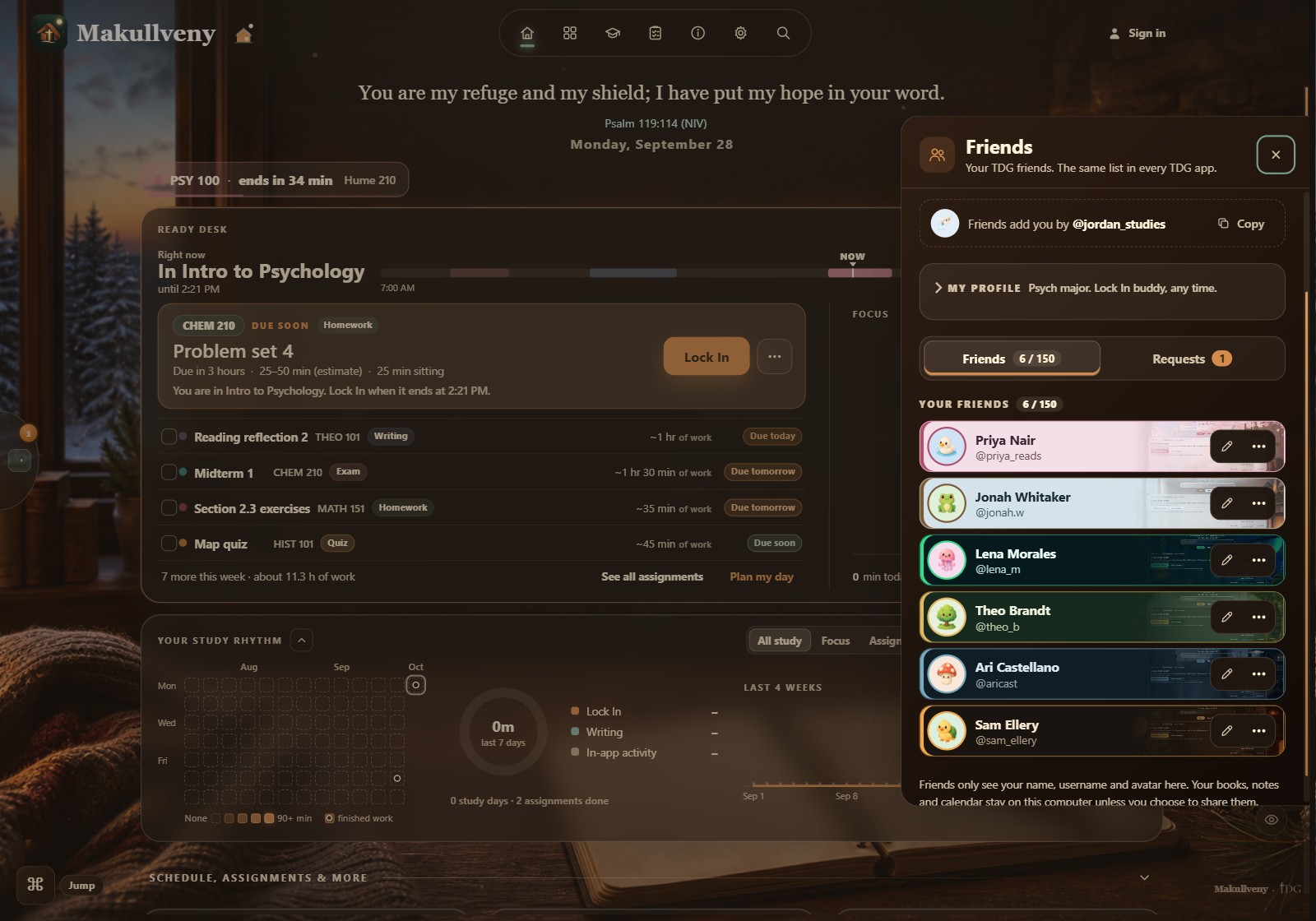


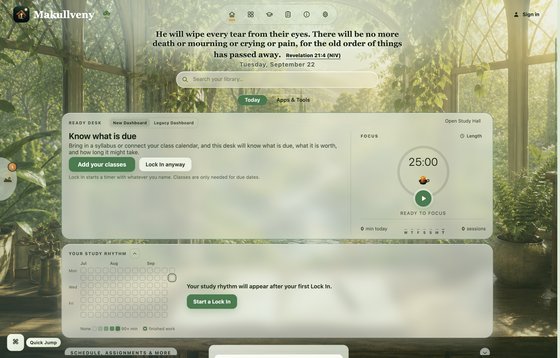
TodayEverything due, in the order it matters — the one assignment worth starting, a candle timer for the sitting you are in, and your month beside it.
Study Hall — BoardEvery assignment as a card you move when the work moves — each column carries its own progress.
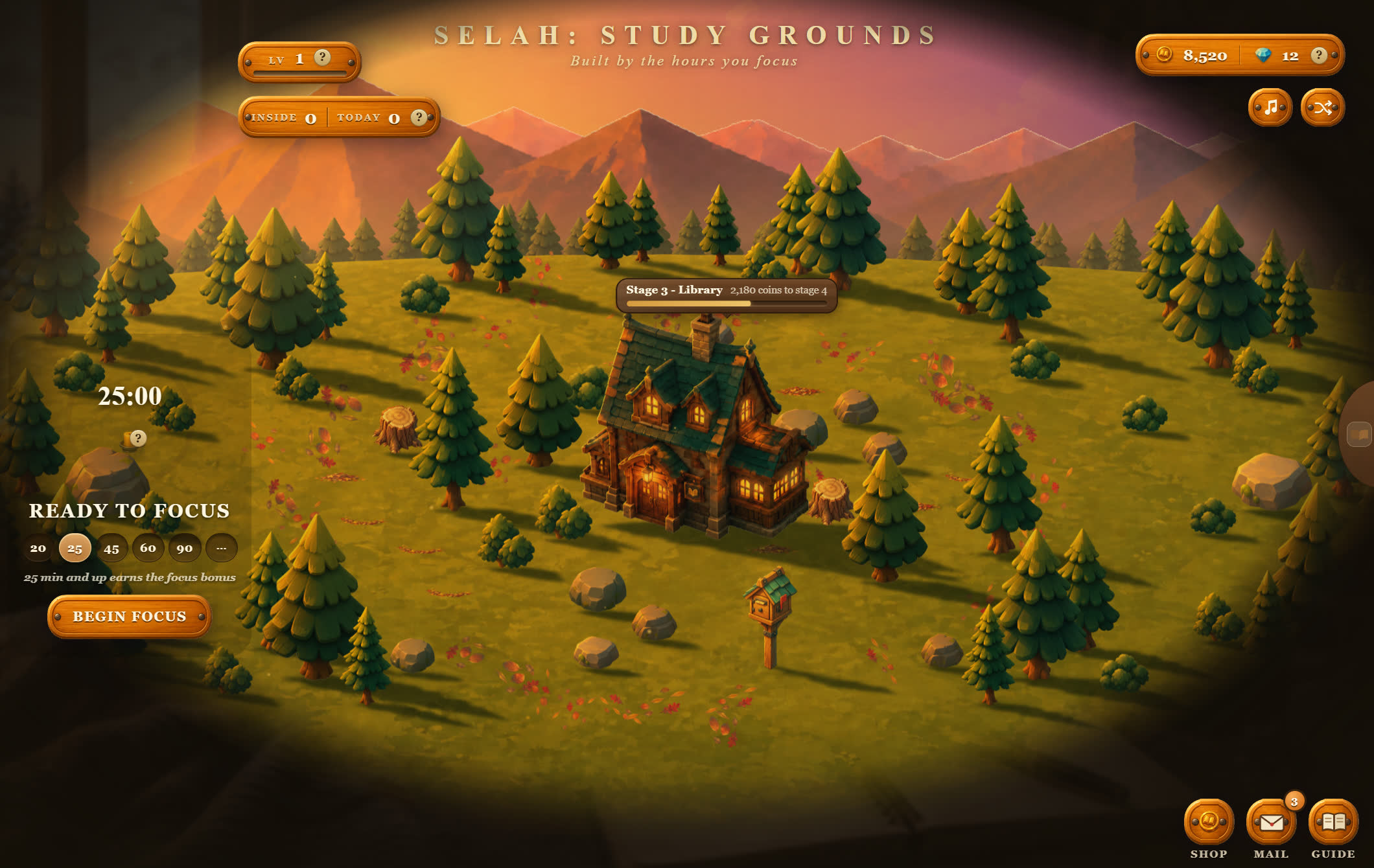
Selah: Study GroundsThe hours you actually sat down, built into a place — and the people of the grounds out walking in it. Study, and the clearing grows a library.
Selah at nightThe same grounds, lit by the hour you are studying in. Golden morning, midday, dusk, night — it turns with your day.
FriendsYour TDG friends beside your day — the same list in every TDG app, each card in that friend’s own theme.
Library DeskYour notes on real paper you choose, in books, scrolls, journals, card boxes and blueprints. It prints, it exports, and it never leaves this machine.
AssignmentsEvery assignment in one table — filter by due today, due soon or done, and move each one’s stage right where it sits.
Study Hall — CalendarClasses and deadlines on the same week, an exam marked as a test, and a line across the hour you are in.
Why it exists
You already know what's due.
The hard part is starting.
Twenty minutes go missing between deciding to study and actually studying — finding the file, finding the notes, finding the playlist. Makullveny is the one place they already live, so that twenty minutes goes back into the work.
The dashboard
Put your classes in once. Makullveny tells you what’s next, when to do it, and locks you in.
One screen: what to work on and why now, a candle timer for the session you are in, your month, your courses, what is due, the small tools, and the quiet world your focus grows. Every card can be resized, moved or taken off.

Lock In
Four questions, then it gets out of the way.
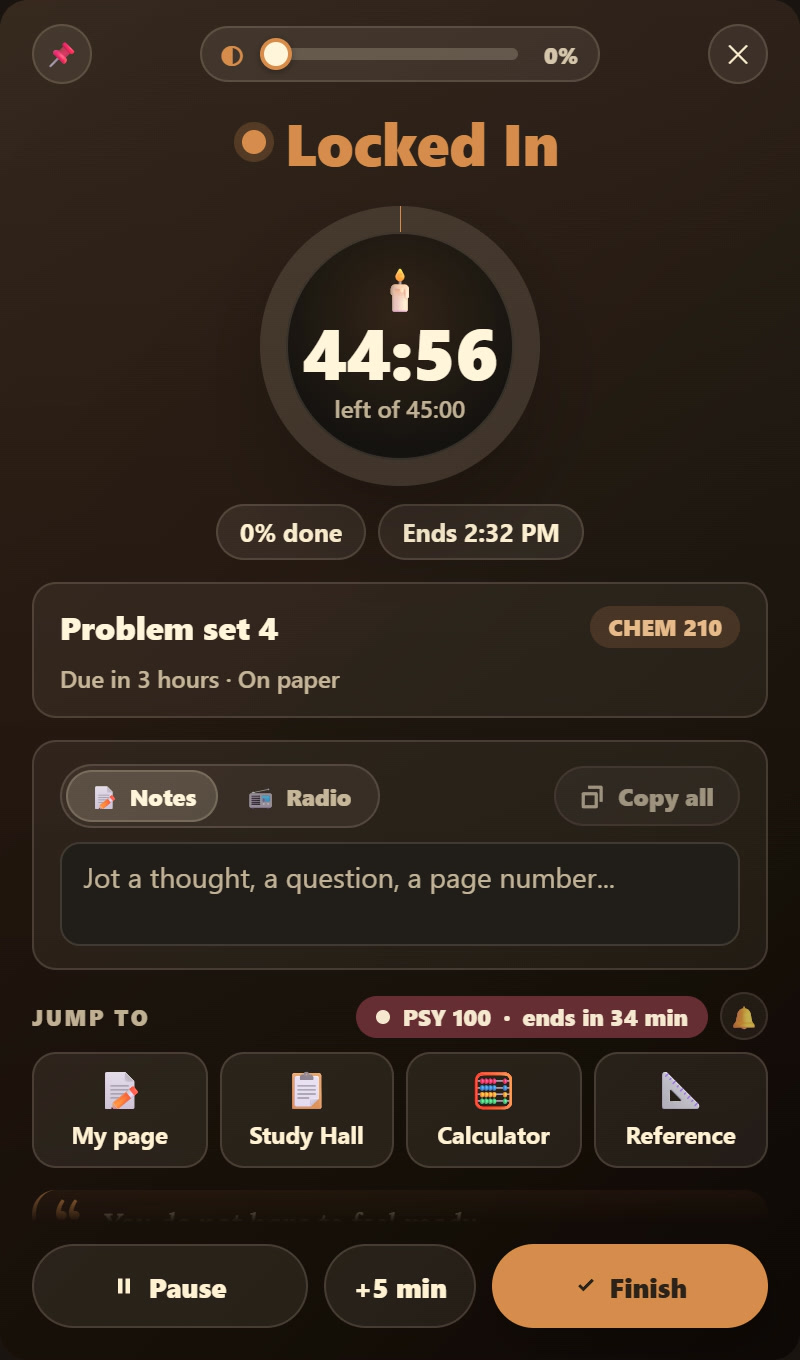
What are you doing, how long, where are you working, and what do you want on while you do it. Answer once and the session is built — the Library Desk or real paper, rain or fire, the radio, a tool beside you, a line to start with. Then the app folds down into a small study window that sits next to your work and keeps the candle lit.
Slide Lock in → to start. Something came up? Pause one Lock In, start another, and pick the first back up later. Every session lands on your week: seven small bars on the Focus card show how long you really studied each day.
Friends New
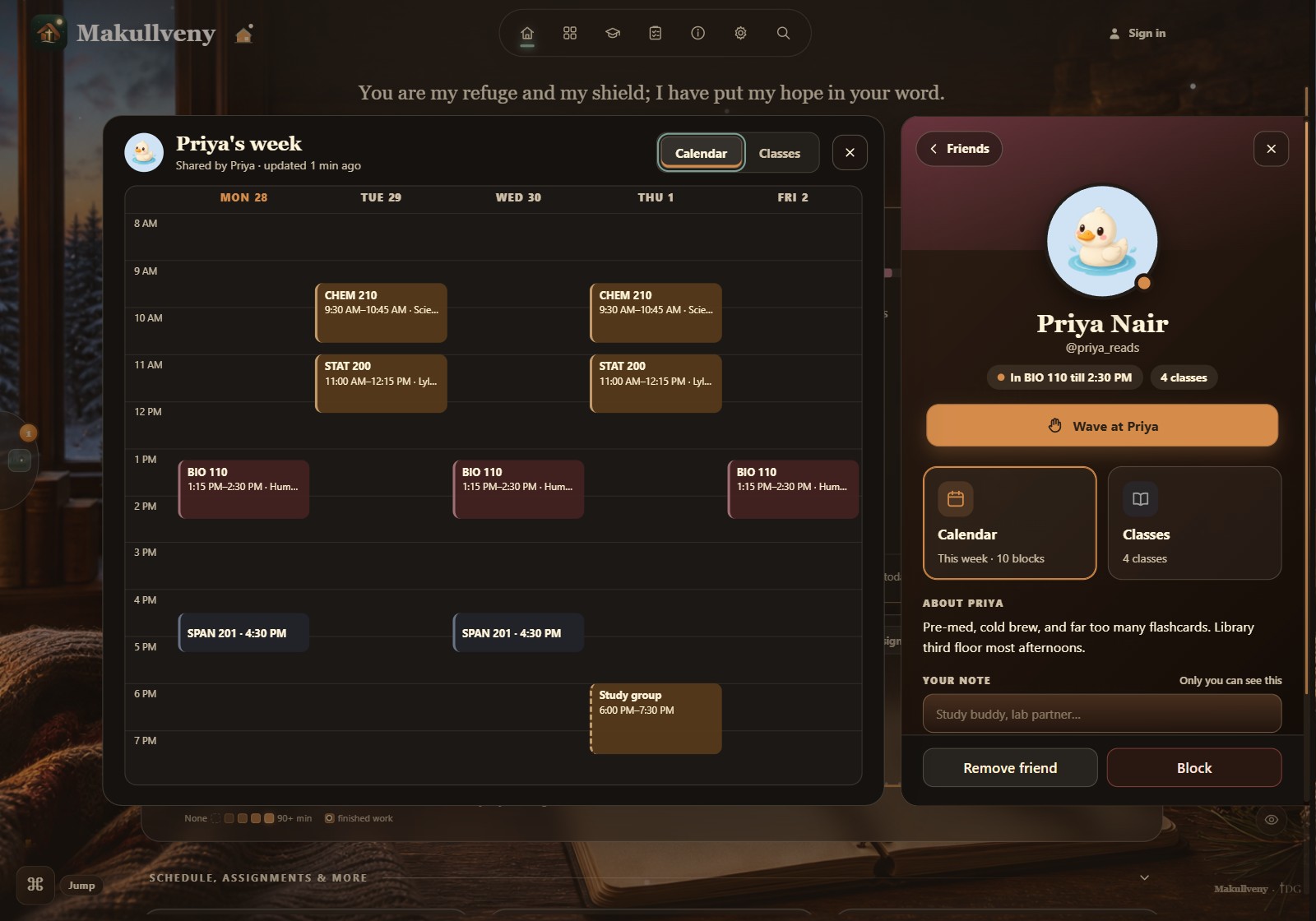
See who is in class, and who is free.
Add friends by their @username. See who is in class right now and who gets out soon, lay their week over yours, and wave hello. Lock in together: friends studying with you show up on your Ready Desk, you hear when one joins, and you can send a cheer. Sharing is off until you turn it on, and you pick who sees what.


Selah: Study Grounds
Your study time, as a place you can walk into.
Selah is a visual record of the hours you actually put in. Not a streak you can break, not a chart, not a number that shames you — a home base that gets a little more built every time you sit down. The focus timer lives inside it, so studying and building are the same button.
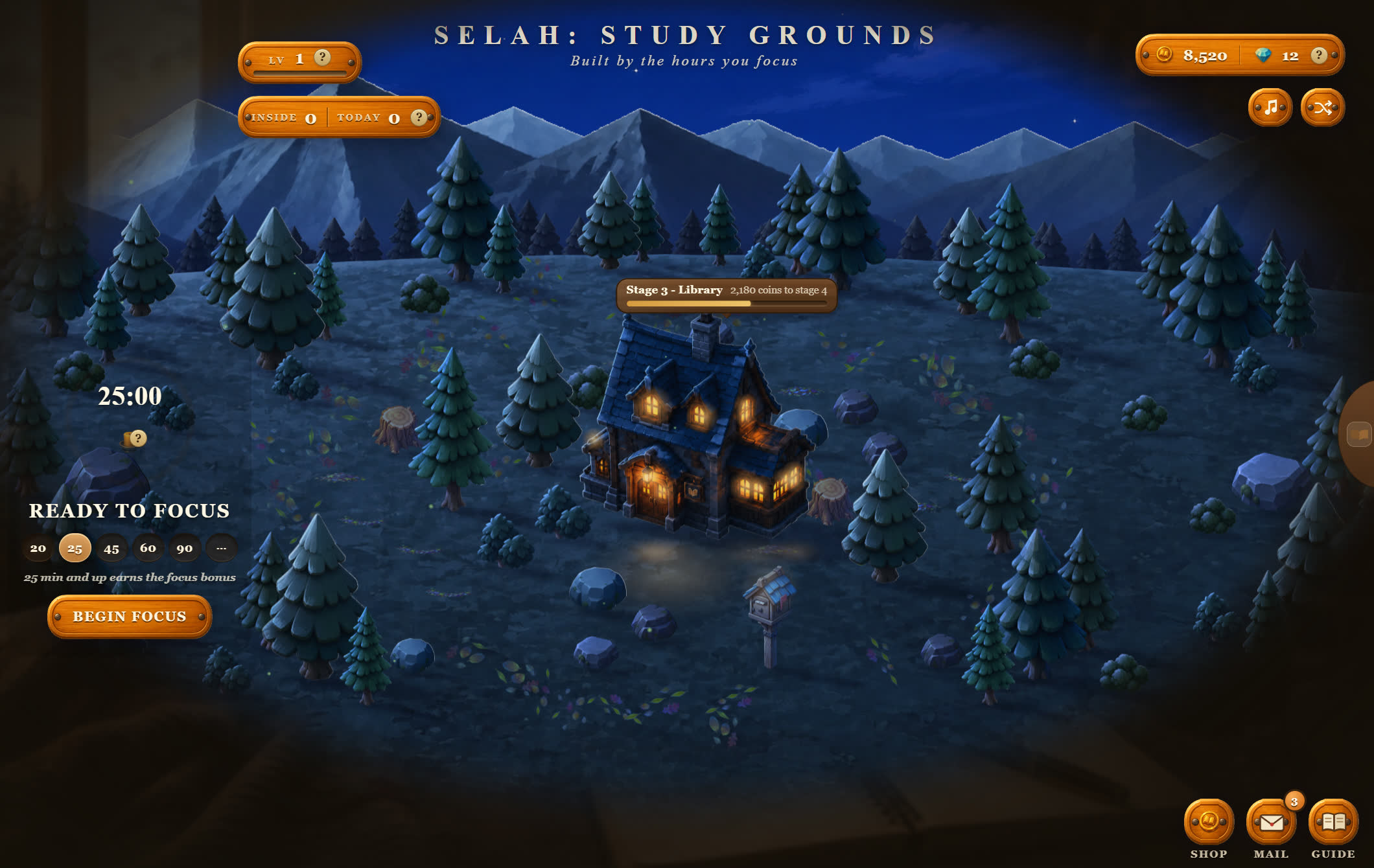
Watch it grow
Every hour you study, the library gets bigger.
The building in the middle of Selah is yours. It grows with the time you actually put in — and it only ever goes up. Here is the climb, straight from the app — the last two you will have to see for yourself.
-
Stage 1 · Timber A one-room book shack From your first session

-
Stage 2 · Bronze A cottage with a chimney About 3 hours

-
Stage 3 · Gold The library proper About 20 hours

-
Stage 4 · Ruby Keep studying to find out About 60 hours

-
Stage 5 · Diamond Keep studying to find out About 150 hours

Hours of focused study, roughly. When a stage is ready, tap the library and press Upgrade. Spending never shrinks it, and a missed week never takes a floor away.
Selah is the word the Psalms use for a pause. That is on purpose.
Apps & tools
Everything you open, on one page.
Notes, your classes, your assignments and the small tools a study session keeps reaching for — all a press away from the dashboard.
- Library Desknotes on real paper
- Study Hallboard, assignments, flashcards
- Classesevery course, and the calendar
- Photo → flashcardssnap your cards, study them
- Import Deska syllabus, into your term
- File Workshopconvert, merge, split
- Typing & Calculatortwo small tools
- Radio & ambiencelofi and rain, built in

Atmosphere
Four rooms come free. Six more are in the Candle bundle.
The whole app re-themes — background art, paper, type and chrome change together, so you change the room you are sitting in, not the colour of a button.

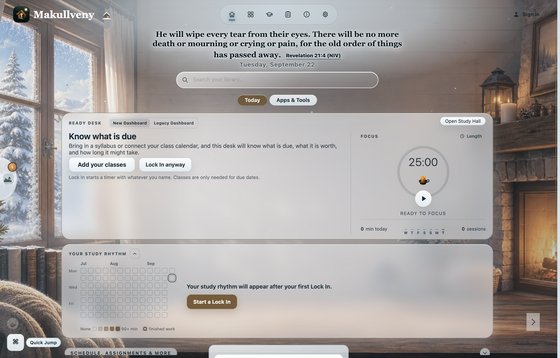


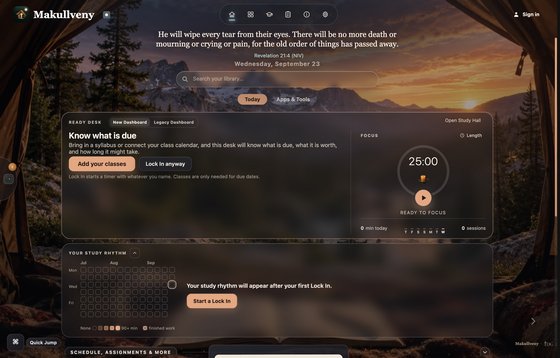

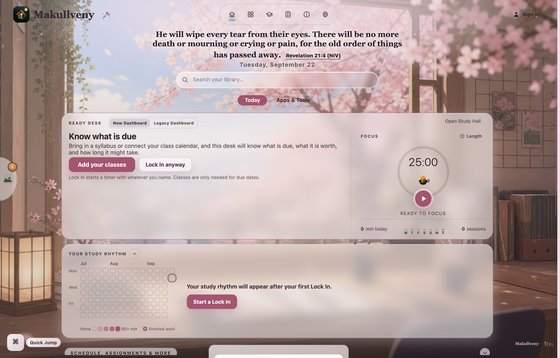


Free with the app: Cozy Cabin, Snow Cabin, Rainy Cafe and Woodland Library. Paid: the other six are the Candle bundle, bought once in the in-app Theme Market. A bundle of seven hand-illustrated rooms is on the way.
Look around every roomWhy we built it
We love Jesus, and we are not shy about it.
“The LORD is a refuge for the oppressed, a stronghold in times of trouble.” Psalm 9:9
Makullveny opens on a verse. Not a banner, not a pop-up — one line at the top of your desk, under the light, before the work starts. Selah, the world your focus grows, takes its name from the pause the Psalms keep asking for.
Makullveny is built under TDG — The Disciples of God.
Download
Getting Makullveny onto your computer.
It is free, and it stays free. There are a few short steps and one confusing moment in the middle — here is all of it, in order, with a picture of every screen you will meet.
Windows sells a certificate that vouches for who wrote an app, for a few hundred dollars a year. Makullveny is free to download and does not have one yet. That is the whole reason for the warning: not that something is wrong with the app, only that nobody has paid to vouch for it. Windows will let you say “I know — open it”, and it hides that button. Below is exactly where.
On a Mac there is no warning to get past: the Mac app is signed and checked by Apple, so your Mac only asks the usual question about something you downloaded.
Makullveny is desktop software — it does not run on a phone or a tablet. Open this page on a computer when you are ready, and the steps below are waiting.
Get the installer
One file, straight from the releases page. Nothing runs on its own — it waits in your Downloads folder until you open it.
Windows will warn you once. That’s okay. Click More info, then Run anyway.
Prefer no installer? Portable build · Windows 10 or newer
Open what you just downloaded
Chrome, Edge and Firefox all tuck a finished download into a small panel near the toolbar. Opening it from there saves the trip to the folder.
Windows stops you once. This is the part to read.
A coloured box appears saying Windows protected your PC. Nothing is wrong with the file — the box is about who signed it, not what is in it.
The catch is that the button you need is not on the box when it arrives. “Run anyway” only appears after you press “More info” — and that one small link is where nearly everybody gives up.
The box borrows your Windows accent colour, so yours may be blue, green or purple rather than this. The words are the same.
That was the only time
The installer runs, Makullveny opens, and neither Windows nor SmartScreen asks again — not for this version, and not for the updates after it.
One last thing worth thirty seconds: while Makullveny is open, right-click it on the taskbar at the bottom of your screen and choose Pin to taskbar. It stays there from now on, so opening it tomorrow is one click instead of a hunt through the Start menu.
Nothing to do here — this is just where the path ends.
Get the disk image
Makullveny for Mac comes as a disk image, made for Macs with Apple silicon (M1 or newer — most Macs from 2020 on). It is signed and checked by Apple.
Your Mac will block this version once. That’s okay. Click Done, then Open Anyway in Privacy & Security.
Your Mac asks once. That’s normal. It says the app was downloaded from the Internet — press Open.
Apple silicon (M1 or newer) · macOS 11 or newer · no Intel build
Drag Makullveny into Applications
Opening the .dmg shows exactly this window. Drag one onto the other, then close the window and eject the disk image.
Open it, and press Open
The first time, macOS asks once whether you want to open an app downloaded from the Internet. That is normal for anything you download — it also says Apple checked Makullveny and found nothing harmful.
That was the only time
From here Makullveny opens from Launchpad, Spotlight or the Dock like anything else, and updates open without asking again.
Updating from an older Makullveny? The first time the new version opens, it asks you to sign in once (a security upgrade) and, if you linked a school calendar, to paste that link again. Your books, pages and notes stay right where they were.
One last thing worth thirty seconds: while Makullveny is open, right-click its icon in the Dock and choose Options → Keep in Dock. It stays there from now on, so opening it tomorrow is one click instead of a trip to Applications.
Nothing to do here — this is just where the path ends.
Downloaded before October 2026?Your Mac will block this version once — here is the way past
This version is not signed by Apple yet (the signed one is on its way), so macOS refuses it the first time. Do these two steps once:
Older copies were not signed by Apple, so macOS says it “could not verify” them. Easiest fix: download the new one above. Or let the old one through like this:
Open it once, and let it refuse
The first time you open Makullveny, macOS puts up a box saying it could not verify the app. Being refused here is not a mistake — macOS will not offer you a way past until you have tried once.
This is the one screen in the whole process where the habit you have built up over years points at the wrong button.
Give it permission, once
Open System Settings, choose Privacy & Security in the sidebar, and scroll down to the Security section. A line about Makullveny is waiting there.
That line only appears after you have tried to open the app, and it clears itself after about an hour. If it is not there, open Makullveny once more and come back.
Or, if you would rather type one line — this does the same thing, once.
- Press ⌘ Space, type Terminal, press Return.
- Copy the line below, paste it in with ⌘ V, and press Return.
xattr -dr com.apple.quarantine /Applications/Makullveny.app
Nothing is installed and nothing is granted: it removes the “downloaded from the internet” mark from this one app, which is what the Open Anyway button above does too. Then open Makullveny normally.
Get the AppImage
An AppImage carries everything it needs. There is nothing to install and nothing to uninstall — delete the file and it is gone.
Every build is on the releases page · a recent Linux desktop
Let it run
Linux will not run a downloaded file until you say it may. In a terminal: chmod +x Makullveny*.AppImage — or in your file manager, Properties → Permissions → Allow executing.
No signing warning on this side: your desktop asks you directly instead of routing the question through a vendor.
Double-click it
It opens straight away. Most desktops offer to add it to your applications menu the first time.
Nothing to do here — this is just where the path ends.
The blog
The last three things that changed.
Makullveny ships most weeks. Every release is written up in plain words — what changed for you, not what changed in the code.
Loading the three most recent releases…
Every release since the beginning, newest first, with the download for each one.
Open the full archiveAbout the project, and where a bug goes
Makullveny is made by two brothers, and it is being built in front of you.
It is a TDG project — The Disciples of God, the same two of us behind the other apps on the TDG site. The whole app is a work in progress: we are releasing early on purpose, because we would rather students and friends were using it now and telling us what breaks than wait on a version that never quite feels finished.
So expect bugs — anywhere in the app, not only in the newest parts. When you hit one, telling us is the fastest way it gets fixed, and it is genuinely the main way to support what we are doing: every report, and every person who actually uses the app, is what keeps it moving.
Report a bug at any time. The button opens TDG’s feedback form with Makullveny already selected; you can send the same report from inside the app — Settings → Feedback → Send Feedback — and a reply comes back to you there.
The page you were on and the button you pressed is usually the whole bug.
Screenshots help. So does the exact wording of anything that appeared.
Reports from inside Makullveny carry the version number with them, and the answer lands back in the app.
Privacy
Your work stays yours.
Makullveny is local-first by design. This page is a public overview of the project; the app's source is private, and so is everything you write in it.
Books, pages, drawings and study content are stored on your own computer unless you choose to export or move them.
This public page is only a project overview. It does not include the private app source or anyone's study data.
You can write, draw, revise and convert without ever making one. An account only adds the optional extras — friends, cloud backup and sharing — and the app is complete without it.